Offline AI transcription — running a speech-to-text model entirely on your own device without any internet connection — was largely theoretical before 2022. The models that existed were either too small to be accurate or too large to run on consumer hardware in reasonable time.
Open-weight speech models changed this. Kajo Voice runs one of them on-device — Transcribes 98 languages on your laptop — all on-device. What the model is and why it fits on a laptop: the engine guide. This guide is about the other half of the promise: download once, then run the whole loop with the network off.
What downloads, and how big it is
≈2.2 GB of models before your first transcript (≈2.5 GB on macOS); ≈9 GB in total once the chat model finishes downloading in the background. Download once — everything runs offline afterwards. The chat model downloads in the background while you read your first transcript. Models download from Kajo’s asset CDN first and fall back to Hugging Face when the CDN is unavailable; that download is the one thing that needs a connection.
What works with the network off
Everything in the loop:
- Transcription, with automatic speaker labels
- Translation into 59 languages
- Summaries (brief, bullets, or detailed — each with a review-required line)
- Cited chat across a folder or, with a confirm, the whole library
- Every export: SRT, VTT, TXT, CSV, JSON, Markdown, DOCX, PDF, QDPX
Turn the network off, drop in a file, and nothing changes. The same models run whether or not you are connected, so offline does not change the transcript.
What still talks to the network — the honest list
- Licence validation. The Lifetime unlock is checked against the licence server whenever the app is online (about once a day); the request carries a licence key and an install id, not content. Offline, Lifetime keeps working for at least 30 days after the last successful check, then the app falls back to the Free allowance until it can check in again. Nothing is deleted. A machine that never connects runs Kajo Free.
- Crash reports. Sent to Sentry unless you opt out in Settings → Privacy — stack traces and device metadata, never audio or transcript text.
- Product analytics. Opt-in only; event counts, never content.
Never: audio, transcripts, summaries, or chat. There is no cloud-processing path to enable.
How to verify it yourself
Put the machine in airplane mode, or watch it with a network monitor, and transcribe a file. No audio and no transcript leave. The only traffic you will ever see from Kajo is the licence check, crash reports if you left them on, and analytics only if you opted in.
Moving the models to an air-gapped machine
The models are yours. On a connected machine, export them as a zip from Settings → Models. Copy the zip to the air-gapped machine and import it during Setup. From then on the whole loop runs on a machine that has never touched the internet — with the licence caveat above: that machine runs Kajo Free, because the Lifetime unlock cannot be validated without a connection.
The hardware floor
- RAM: 16 GB minimum. Transcription, embeddings, speaker labels, and the Gemma 4 12B chat model share the machine — 16 GB is the product floor, not a comfort recommendation.
- Apple Silicon: the speech model runs with Metal GPU acceleration.
- Intel Macs, Windows, Linux: the speech model runs on the CPU (Windows on ARM runs the x64 build under emulation). Slower — queue a batch and let it work. The chat model can use a GPU through its own runtime.
No published Kajo benchmark exists; time one real file on the free allowance instead.
Why offline matters: the practical scenarios
Airplane mode. Transcribe your interview recordings on a flight before the conference where you’ll need them. Many professionals do their review work during travel.
Client-site laptops. Many firms and secure facilities have restrictive network access — guest networks are segregated, managed workstations have limited internet access. Local transcription works on the workstation without any network dependency.
Air-gapped environments. Networks physically isolated from the internet are common in high-security legal and research settings. Cloud transcription is impossible there by definition. Local transcription is the only option — see the model transfer above.
Field research and remote reporting. Researchers doing fieldwork and journalists on a burner laptop often work with poor or no connectivity. Local transcription works on spotty Wi-Fi or with no connection at all.
Policy. Some organizations prohibit sending audio to external services. Local transcription complies by design.
Building an offline knowledge base from your recordings
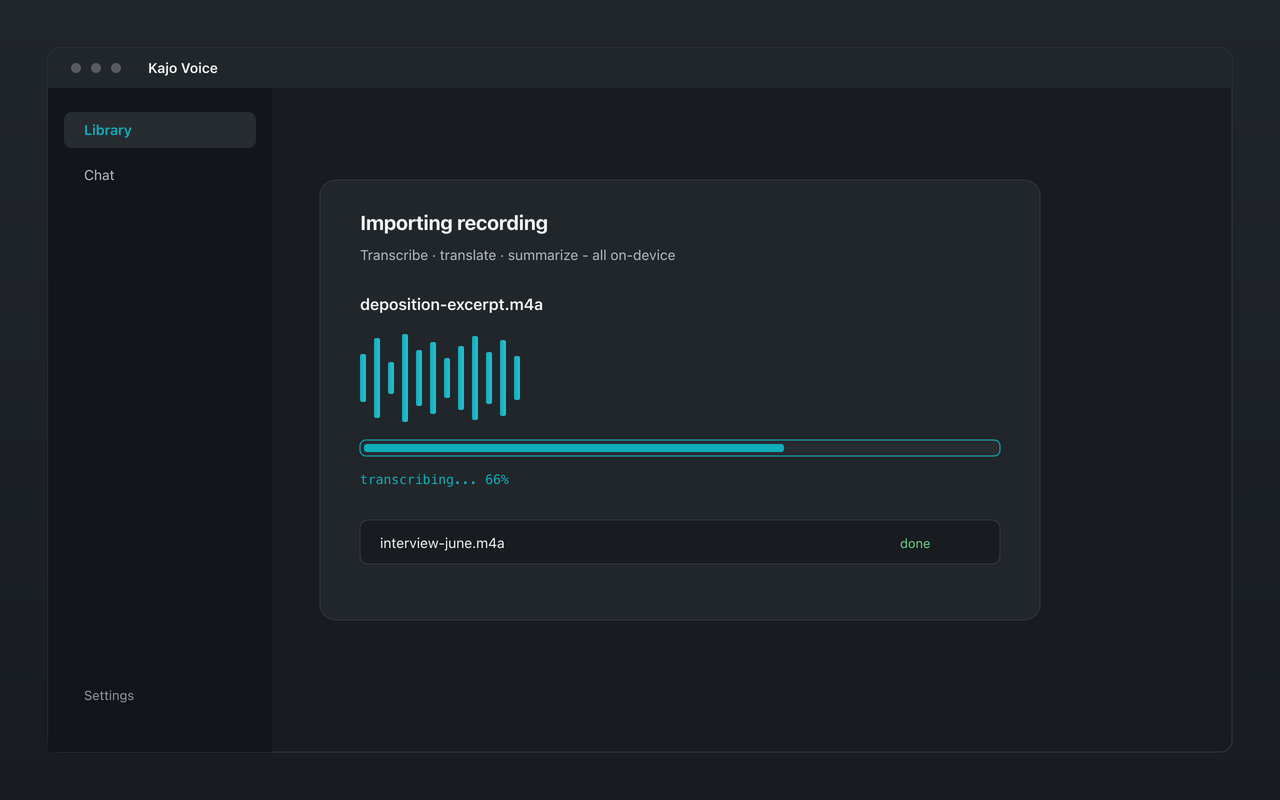
Offline transcription is the first step, not the whole workflow. Every file you drop into Kajo — an interview, a deposition, a session recording you already have — is transcribed on-device with speaker labels, then translated and summarized locally and filed into a private, searchable library. Because all of this happens on your machine, the entire knowledge base works in airplane mode or behind an air gap.
Once a recording is in the library you can pin its folder and ask it, with citations back to the source audio — no network required.
Offline options compared
Raw whisper.cpp or faster-whisper give you the same underlying model for free, but they are command-line tools — no interface, no speaker labels, no library, no cited chat. Lightweight GUI wrappers (MacWhisper, Aiko) lower the barrier on the Mac but stay transcription-only. Kajo Voice is the desktop app path: on-device transcription on Mac, Windows, and Linux, with speaker labels, exports, folders, and a private library you can ask — still fully offline after the one-time model download.
FAQ
Do I need internet to transcribe a file in Kajo? No. After the one-time model download, you drop in an audio or video file you already have and Kajo transcribes it locally. No internet is required during transcription, translation, summarization, or chatting with your library.
How much storage does offline transcription require? About 9 GB for all the models, plus the app. Transcripts and the app’s audio copies stay in the encrypted library until you delete them (watch folders can expire their intake after 30 or 90 days).
Does offline mode affect transcription quality? No. The same model runs whether or not you have a network connection.